|
EVI Charge Stations ~ EVI ~
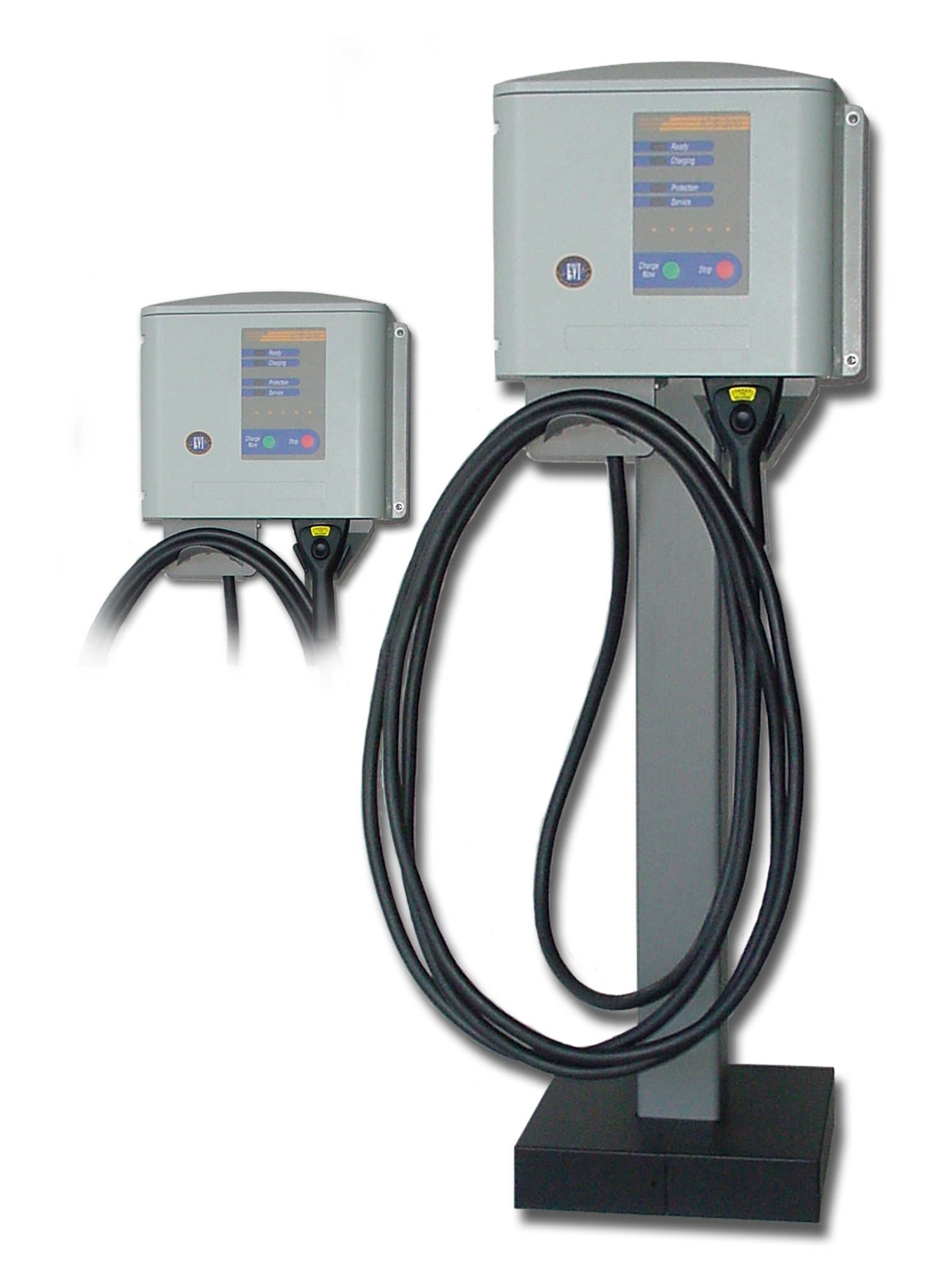
Page Layout Concept for Dual Photos
Click links to go to charge station pages:
Any Questions: Call 360-683-5102 (Mornings
are best) ~ OR Email
 |
Dave: In PageMaker 65, all you have
to do is a "Text Wrap." Here's the steps:
- Select TIFF graphic
- Choose Element > Text Wrap
- At first, the wrap will default to ceratin dimensions. You
will notice that the right wrap option is grayed out. That's
because you haven't started to "customize" the wrap.
You can also assign "standoffs" for the wrap. Hit
OK and return to wrapped graphic.
- When you start adding "handles" to the wrap lines
(by clicking on the wrap lines themselves you'll see little
dots appear and these can be adjusted to move the text), you
will be able to adjust the wrap any way you want. The wrap
then becomes "a customized text wrap." Here's a
neat hot tip: Hold the spacebar as you move the individual
handles until you're done and you won't have to wait each
time for the redraw after moving each handle. Just keep moving
the handles until you're happy with the final outcome of the
wrap. You will notice that you have changed the "standoffs"
to custom dimensions because you now have a "customized"
text wrap.
- Cleaner look and it's easy to do the text wrap . . . THUS
- IT'S A WRAP !!
|
Copy the above JPEG to a new PageMaker file and experiment with it
even though the resolution is 72dpi.
Home
|